Why your kindle book gets rejected: Common formatting errors explained
Prevent KDP rejections with these Kindle formatting fixes.


Words by
Ramisha Batool
Last updated:
The email every author dreads
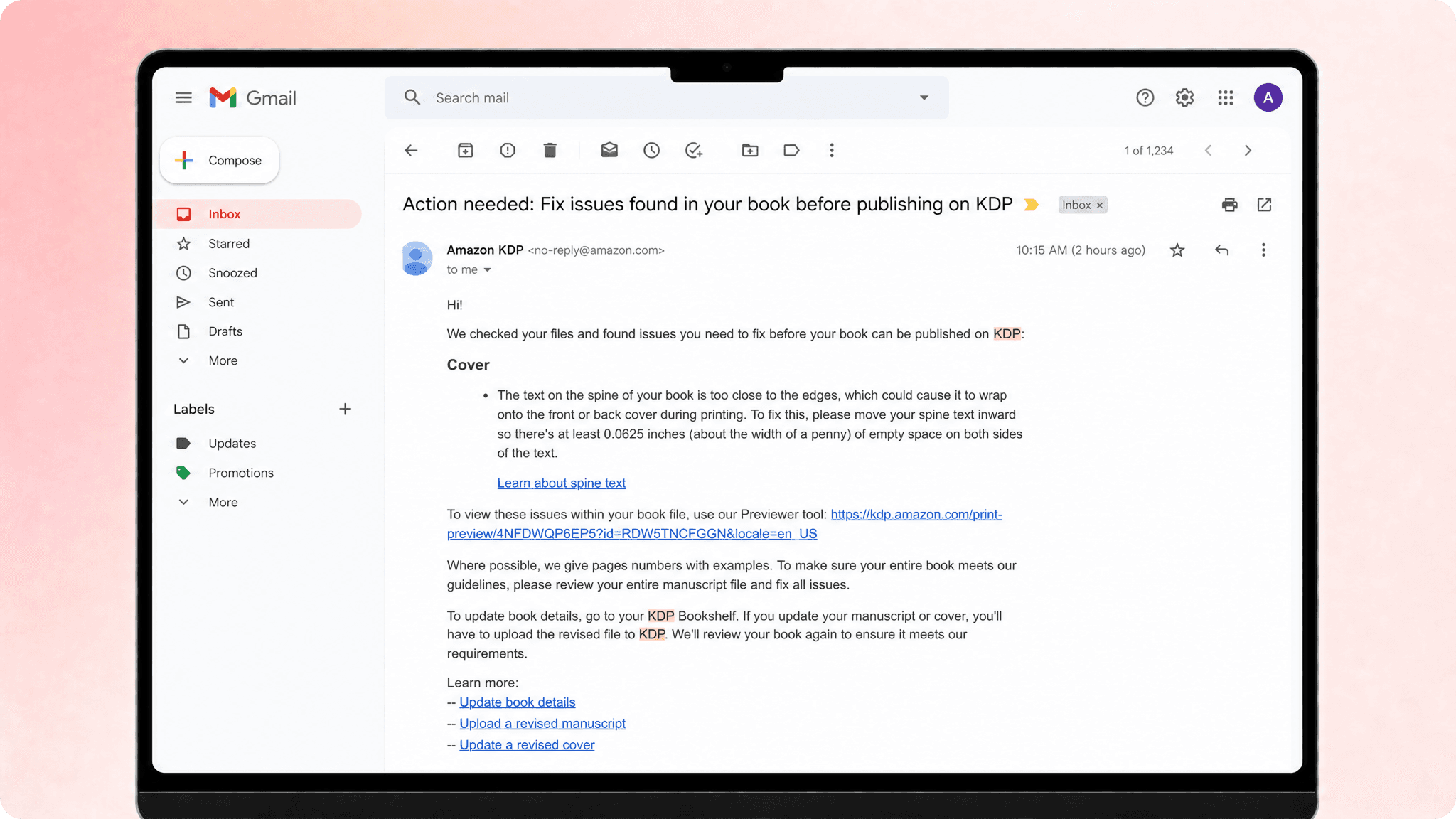
You did it. You finally hit Publish on Amazon KDP, only to receive a frustrating email:
“Your book does not meet our quality standards. Please correct the issues and resubmit.”
If this sounds familiar, you're not alone. Every year, countless authors face rejections. The surprising part? Most rejections have nothing to do with the writing, they are caused by formatting mistakes.
The good news is that these aren't mysterious publishing rules or impossible complicated problems.
Instead of leaving authors to decipher Amazon's publishing requirements on their own, PublishPro checks, formats, and prepares your manuscript so it's ready for bookselling platforms like Amazon KDP and IngramSpark from day one.
Why Amazon rejects books
Amazon reviews every manuscript to protect the reader experience. If a book has broken links, missing chapters, low-resolution images, or awkward page breaks, it gets sent back.
Some of the things Amazon looks for are:
A properly structured EPUB or KPF file
A clickable table of contents
Correct chapter navigation
Clean typography and consistent formatting
High-quality, optimized images
Accurate metadata
Compatibility across Kindle devices
If even one of these checks fails, your book is sent back for revision.
The hidden cost of rejections
At first glance, a rejection email might not seem like a big deal. However it breaks your momentum.
Launch dates get pushed
Pre-order campaigns stall
Excited readers move on
Authors lose valuable time troubleshooting confusing formatting jargon.
For authors working with publishing clients or agencies, the stakes are even higher. Every rejected upload means more revisions, more emails, delayed deadlines, and less time available for the next project.
The goal is to stop getting rejection emails, which is why PublishPro was created.
The 8 most common reasons for Kindle rejection
The encouraging news is that nearly every rejection falls into one of eight common formatting issues. Once you know what they are and how to avoid them, you dramatically increase your chances of passing review the first time.
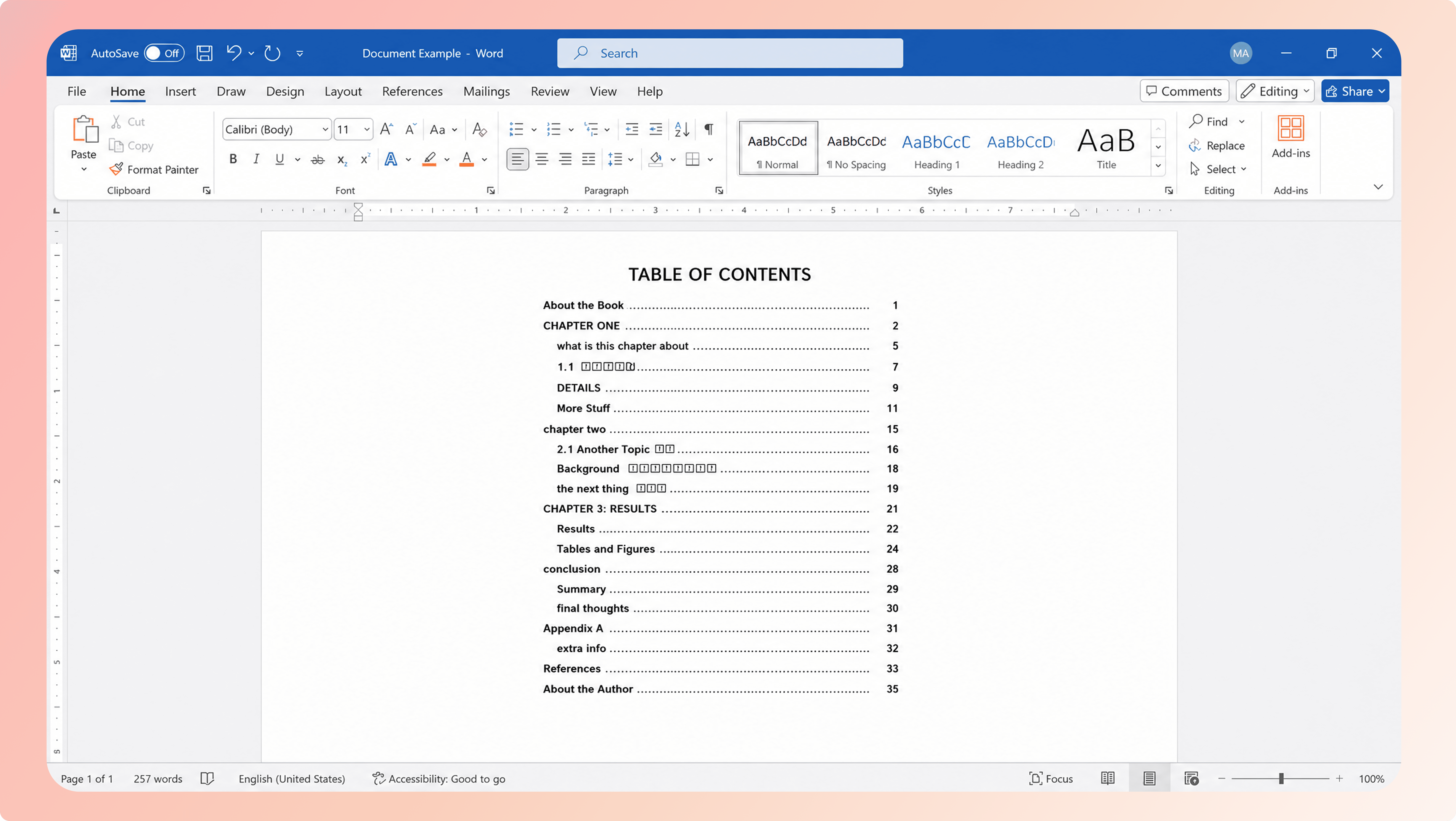
Reason 1: Your table of content doesn't work
You open your Kindle preview, click Chapter 5 and nothing happens.
If readers can't navigate your book, Amazon sees it as a poor reading experience and may reject your upload
Why it happens: Most authors either create the table of contents manually or style chapter titles without using proper heading tags. It looks fine in Word, but Kindle can't understand the structure.
Manual fix:
Generate a new table of contents.
Test every link before uploading again.
Apply Heading 1 to every chapter title
Time: 30–60 minutes.
Reason 2: Your file isn't kindle friendly
Your manuscript looks perfect on your computer, but Amazon disagrees. That's because Word files aren't always structured the way Kindle expects.
Why it happens: Exporting directly from Word or using unreliable conversion tools can create EPUB files with hidden structural errors.
Manual fix: Validate the file, identify every error, correct the source manuscript, export again, and repeat until the file passes.
Time: 1–3 hours
Reason 3: Oversized or low quality images
A cookbook with blurry photos or a children's book with oversized images won't give readers the experience they expect.
Amazon checks for both image quality and file size.
Why it happens: High-resolution camera images make files unnecessarily large, while screenshots and low-quality graphics often appear blurry on Kindle devices.
Manual fix: Resize, compress, replace low-resolution images, then reinsert them into your manuscript.
Time: 1–2 hours.
Reason 4: Manual page breaks causing layout problems
Everything looks perfectly spaced in Word.
Then you preview your Kindle book and discover random blank pages and awkward chapter breaks.
Why it happens: Pressing Enter multiple times creates empty paragraphs that behave differently on Kindle devices.
Manual fix: Replace every block of blank lines with proper page breaks.
Time: 30–45 minutes
Reason 5: Unsupported fonts or font errors
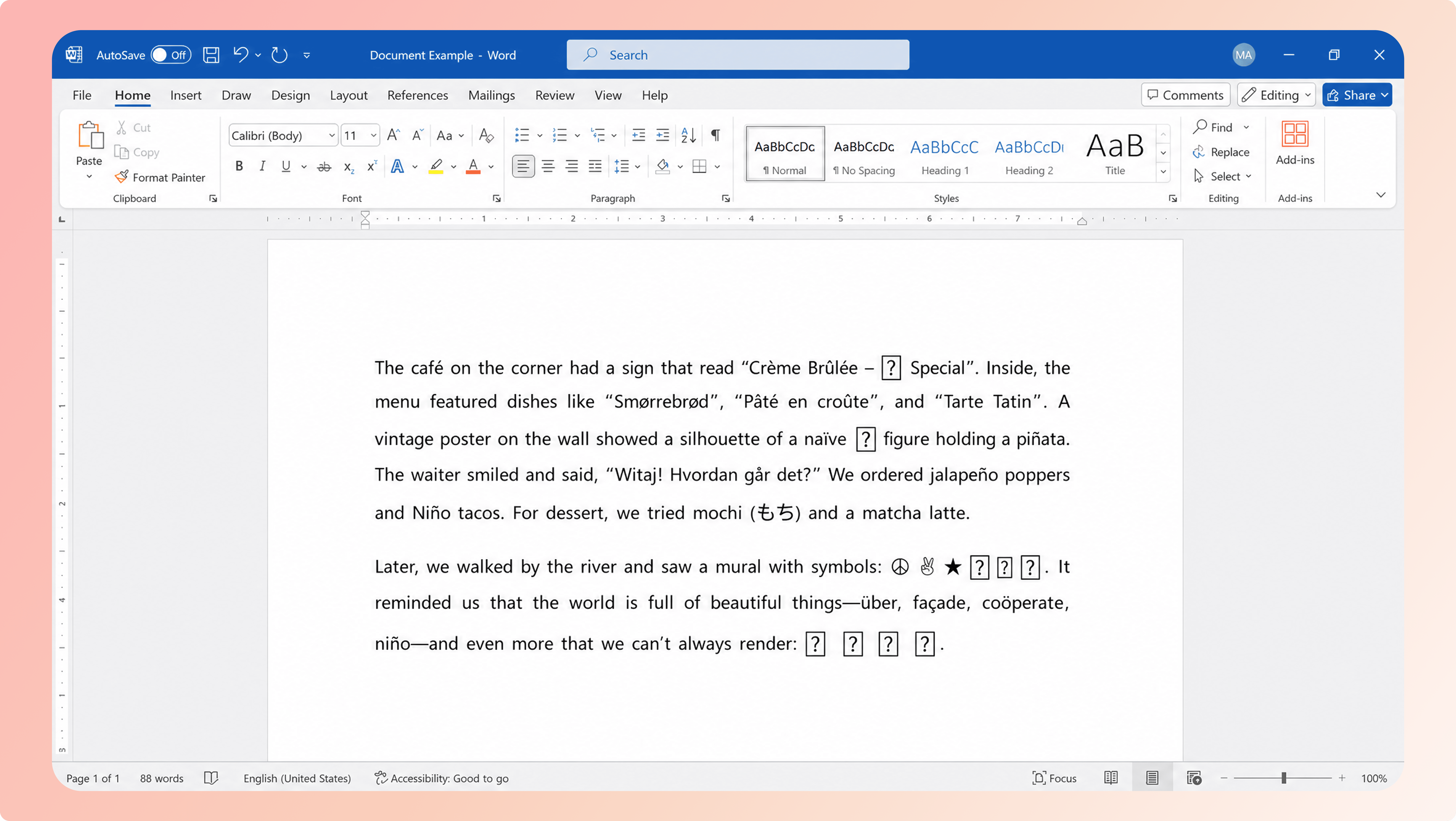
Your manuscript looks beautiful on your computer, but after uploading, Amazon replaces your carefully chosen font, or worse, flags the file altogether.
Why it happens: This usually happens when unsupported fonts are embedded incorrectly or special characters aren't compatible with Kindle devices.
Manual fix:
Replace unsupported fonts with Kindle friendly alternatives.
Check special characters and symbols.
Re-export and test the file on multiple devices.
Time: 30–60 minutes.
Reason 6: Broken or missing chapter structure
Your chapters may look perfectly organized in Word, but if Kindle can't recognize where one chapter ends and the next begins, navigation breaks and Amazon may reject the upload.
Why it happens: This often happens when chapters are created using manual formatting instead of proper heading styles and page breaks.
Manual fix: Apply consistent heading styles to every chapter.
Insert proper page breaks.
Verify the chapter structure before exporting.
Time: 45–90 minutes.
Reason 7: Metadata that does not match the file
Imagine finally uploading your book, only to have Amazon reject it because the title on your cover doesn't exactly match the title you entered on KDP.
Why it happens: If your title, author name, subtitle, or chapter information doesn't match across your manuscript and your KDP listing, your book can be flagged for review.
Manual fix:
Double-check your title page against your KDP listing.
Make sure the author name is identical everywhere.
Verify that chapter names match your table of contents.
Export and upload the corrected file again.
Time: 15–30 minutes.
Reason 8: File that looks fine on desktop but fails on devices
This is one of the most frustrating problems authors face.
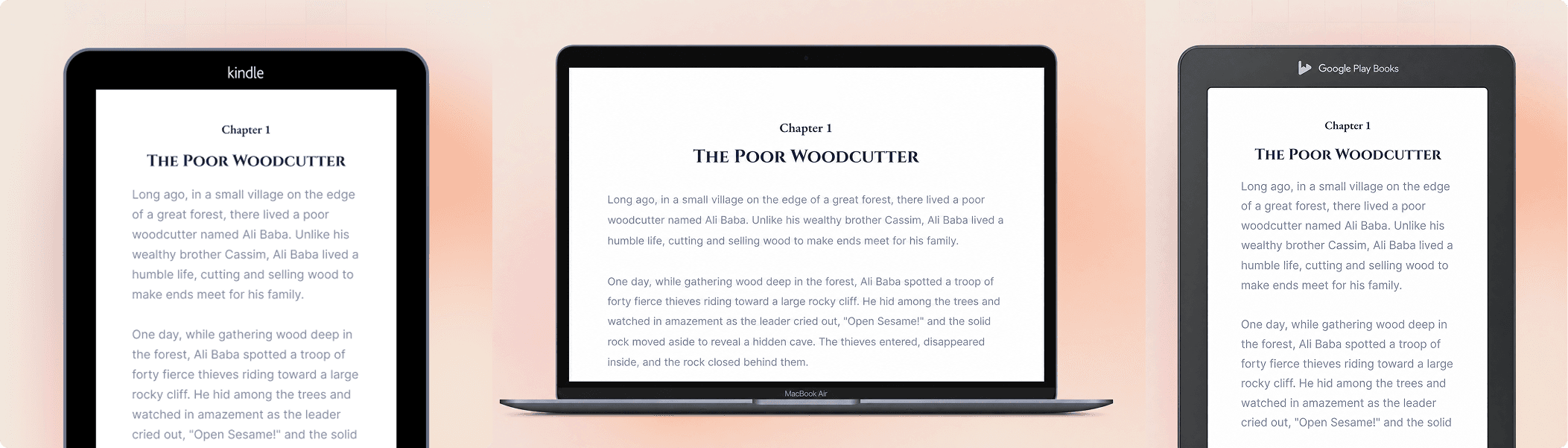
Your PDF looks flawless. The Word document is exactly how you imagined it. Then you preview it on a Kindle and discover overlapping text, missing images, awkward spacing, or unexpected blank pages.
Why it happens: Different Kindle devices display books differently, which is why testing matters.
Manual fix:
Preview the book on multiple Kindle devices or simulators.
Identify layout issues.
Edit the manuscript and repeat the export process until everything displays correctly.
Time: 1–2 hours.
How PublishPro solves these problems
PublishPro takes the guesswork out of Kindle publishing. It automatically detects your chapter structure, generates KDP ready EPUB, optimizes images, fixes hidden formatting issues, replaces unsupported fonts, validates metadata, and ensures your book displays consistently across Kindle devices. Instead of troubleshooting technical errors, you can upload your manuscript with confidence, knowing it's ready for publication.
One rejection can cost you more than you think
Most authors think a rejection email means a quick fix.
In reality, one rejected upload can cost 5–12 hours of troubleshooting, reformatting, exporting, and uploading again. If your book is tied to a launch date, marketing campaign, or pre-orders, those delays can also cost you valuable momentum.
Manual Formatting | With PublishPro |
|---|---|
5–12 hours fixing errors | Under 1 hour to prepare |
Multiple upload attempts | Built for first-time approval |
Manual formatting checks | Automatic validation |
Test on multiple devices | Built-in preview |
Constant guesswork | Guided publishing workflow |
The goal isn't to become an expert in Amazon's publishing requirements. It's to publish your book with confidence.
Built for every author
Whether you're publishing your first novel, helping clients launch books, or managing dozens of manuscripts, PublishPro simplifies the entire publishing process.
Instead of spending hours fixing formatting issues, you can focus on writing, editing, and growing your audience while PublishPro handles the technical details behind the scenes.
Because a great book deserves more than great writing, it deserves a smooth journey to publication.
Your story deserves better than a rejection email
Remember the author who nervously refreshed their inbox, hoping for an approval email?
Imagine opening that same inbox and seeing this instead:
“Your book is now live on Amazon.”
Your book has earned a smooth path to publication. PublishPro is how you give it one.
That's the moment every author works towards.
PublishPro helps you get there by preparing your manuscript for publication before Amazon ever sees it. From validating your files and optimizing your formatting to ensuring your book meets retailer requirements, it takes the uncertainty out of self-publishing.
You've already invested months, maybe years writing your book. Don't let a formatting error be the reason readers have to wait.
