Why Your eBook Formatting Looks Broken (And How to Fix It)
Solve common Word-to-Kindle formatting problems.


Words by
Arslan Younas
Last updated:
The moment every self published author dreads
It’s 11pm. You just uploaded your manuscript to KDP. You click the preview button, ready to see your finished book.
Then you see it. The text is doing something weird. The table of content is on the wrong page, there are extra spacings and blank pages.
Your first thought? "What happened?"
The truth is, your writing isn't the problem. Word and Kindle simply speak different languages. This guide will show you how to bridge that gap, avoid the common pitfalls, and get your book looking professional from the very first upload.
What’s really happening to your eBook?
Here's the secret most first time authors discover the hard way:
You're not publishing a Word document. You're publishing an eBook. And Word and Kindle don't speak the same language.
A manuscript that looks perfect on your laptop can suddenly have broken chapters, missing indents, floating images, or a table of contents that refuses to work. Not because you did anything wrong, but because eReaders rebuild your book from its structure, not how it looks on the page.
Think of Word as a printed poster and an eBook as a responsive website. Every reader can change the font size, screen size, and layout, so your book has to adapt without falling apart.
A quick reality check before we continue
Before diving into the technical reasons, here’s a perspective that helps:
“Authors think they’re publishing a document. They’re actually publishing software. An EPUB file is code that gets interpreted differently by every reading device. That’s why what looks fine on your laptop falls apart on a phone.”
This is the mental shift that separates frustrated authors from professional ones. Your eBook isn’t a Word document with a different file extension. It’s a piece of responsive code that has to work on every screen size, every device, every font setting, and every reader preference.
The most common formatting problems (and how to fix them)
Random blank pages
The culprit: Pressing Enter over and over to start a new chapter.
The fix: Use proper page breaks instead.
With PublishPro: Manual line breaks are detected and cleaned automatically.
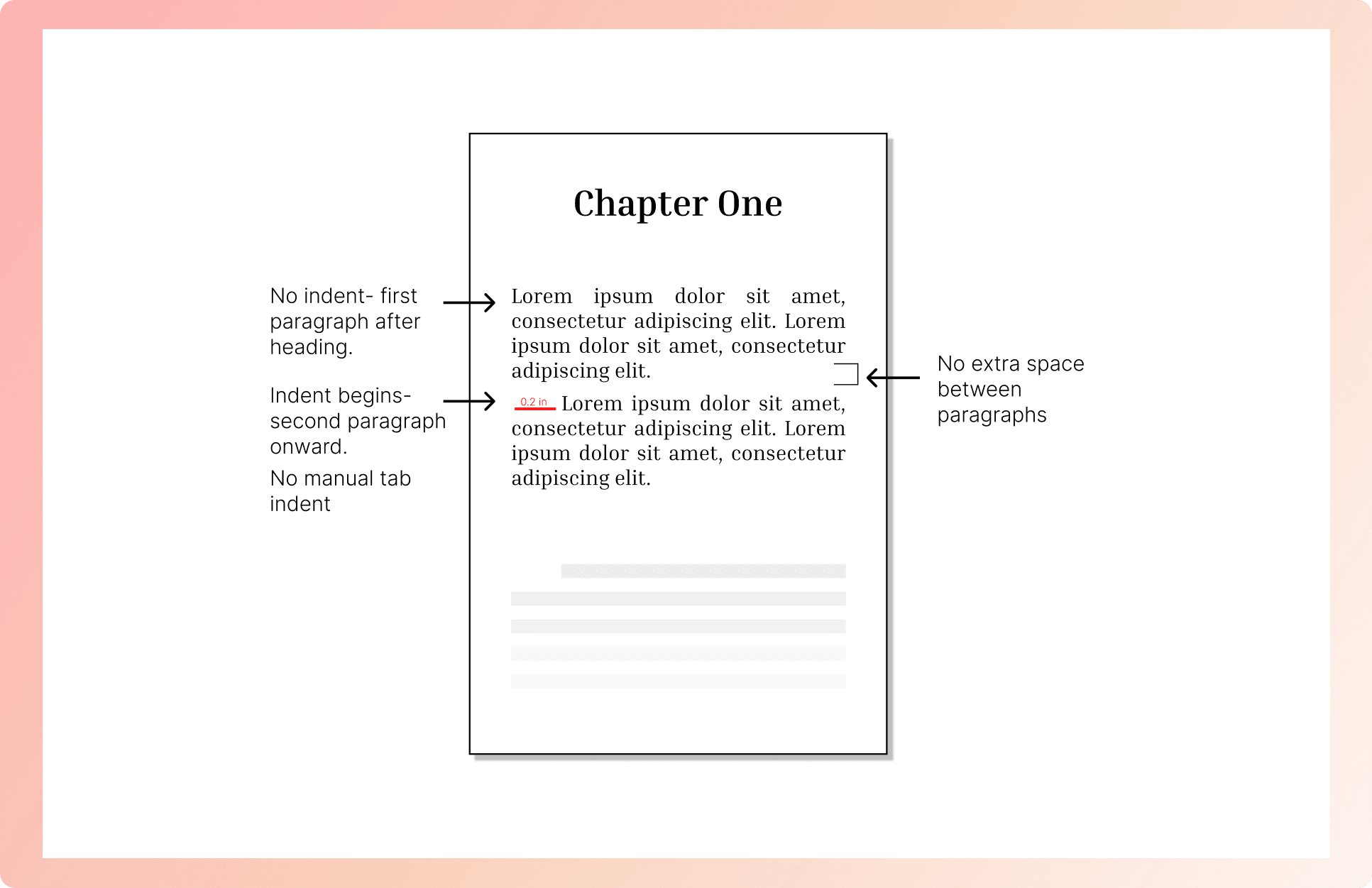
Inconsistent paragraphs
The culprit: Tabs and spaces used for indentation.
The fix: Use paragraph styles with first-line indents.
With PublishPro: Every paragraph is formatted consistently from start to finish.
Chapters that don't match
The culprit: Formatting every chapter title by hand.
The fix: Apply Heading 1 to every chapter.
With PublishPro: Chapter styles are applied automatically, creating a clean and consistent book.
Broken table of contents
The culprit: A typed table of contents may look fine, but Kindle can't use it.
The fix: Generate it automatically from your chapter headings instead.
With PublishPro: It builds a fully clickable TOC and checks every link before export.
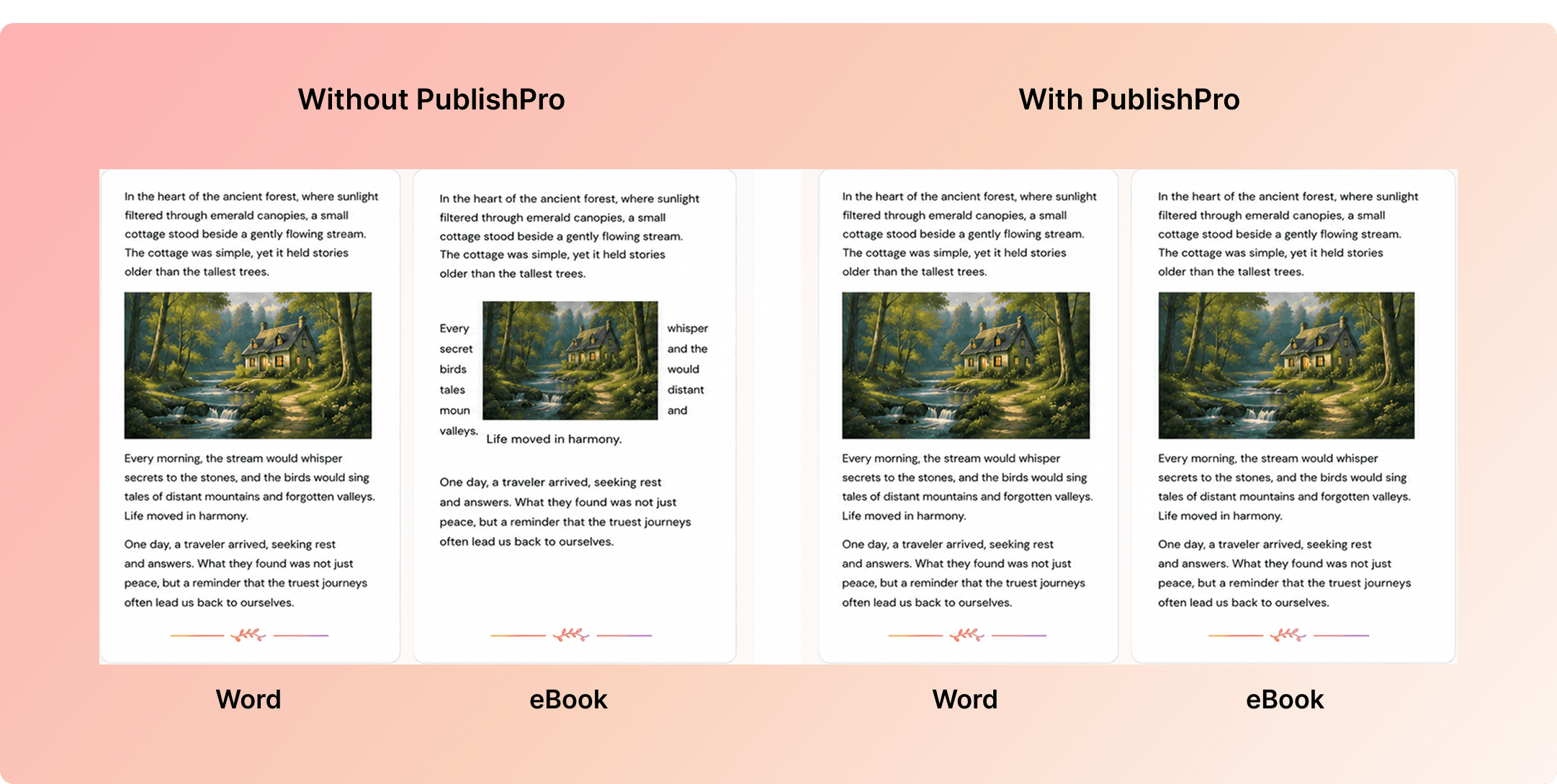
Images that wander around
The culprit: Floating images often move after conversion.
The fix: Keep every image In Line With Text so it stays exactly where it belongs.
With PublishPro: Automatically optimizes image placement for every device.
Fonts changing randomly
The culprit: Copied text often brings hidden fonts with it.
The fix: Apply one consistent font across your manuscript before converting.
With PublishPro: Automatically detects and removes hidden font formatting during import, standardizing your manuscript so all text uses a consistent font before conversion.
Looks great on your laptop, not on a phone
The culprit: One device isn't enough.
The fix: Always preview your eBook on different screen sizes because readers won't all be using the same device.
With PublishPro: You can preview your book on before publishing.
While manual formatting requires repeating the same edits throughout the manuscript, PublishPro automates many of these tasks in seconds.
Here’s how the two processes compare:
Step | Manual Process | With PublishPro |
|---|---|---|
Clean up manuscript | 2 to 4 hours | Automatic detection during import |
Apply structural formatting | 4 to 8 hours | Applied automatically |
Generate table of contents | 1 to 2 hours | Built from your headings |
Convert to EPUB | 1 hour plus testing | One click |
Validate against platform specs | 2 to 3 hours | Built-in validation |
Test on multiple devices | 3 to 5 hours | Multi-device preview included |
Total time | 13 to 23 hours | Under 1 hour |
The point isn’t that manual formatting is impossible. It’s that there’s no longer a reason to do it that way unless you genuinely want to learn the technical side.
Your time is better spent writing your next book.
The faster way to publish
You can fix every one of these problems by hand.
But why spend hours hunting down hidden formatting when PublishPro can do it in minutes? Instead of cleaning Word files, rebuilding tables of contents, validating EPUBs, and testing on multiple devices, PublishPro handles the complicated fiormatting work.
Upload your manuscript, let PublishPro structure and validate it, then export publication ready EPUB and PDF files, all in under an hour.
That means less time fixing formatting and more time doing what you actually set out to do: Writing your next book.
