How to format a book for kindle: A step-by-step guide
Create Kindle-ready EPUBs that pass quality checks


Words by
Ramisha Batool
Last updated:
Why your word document doesn't always become a great kindle book
You've finally finished your manuscript. You upload it to Amazon KDP, excited to see your book come to life. Then you open the Kindle Previewer...
Your table of contents doesn't work. Chapters are missing. Images have shifted. Random blank pages appear out of nowhere.
"But it looked perfect in Word!"
If you've ever had that thought, you're not alone.
The truth is, your Word document isn't the same book your Kindle readers receive. Amazon rebuilds your manuscript for every device; Kindles, phones, tablets, and desktop apps. A layout that looks flawless on your laptop can quickly fall apart on a smaller screen.
The good news? Most Kindle formatting problems aren't complicated, they're simply the result of using Word like a print document instead of an eBook.
In this guide, we'll walk through eight simple steps to format your book the right way, helping it look professional on every device and giving it the best chance of passing Amazon's review the first time.
And if you'd rather skip the technical work altogether, PublishPro automates the entire formatting process, turning your manuscript into a KDP ready book without the trial and error.
Before we begin, one quick tip: make sure your manuscript is completely written, edited, and proofread. Formatting should always be the final step, otherwise every content change can undo the work you've already done.
Before you format: Kindle formatting checklist
A fast scan overview of everything this guide covers. Use it as a pre-publish reference once you have worked through each step.
Step | Task | Why It Matters |
|---|---|---|
1 | Clean the manuscript | Hidden formatting causes conversion errors |
2 | Apply heading styles | Required for chapter navigation and TOC |
3 | Set paragraph styles | Ensures consistent indentation on all devices |
4 | Insert real page breaks | Prevents blank pages and misplaced chapters |
5 | Build a clickable TOC | Readers expect to tap and jump; broken TOC draws reviews |
6 | Optimize images | Oversized images bloat the file and break layout |
7 | Export in the right format | Determines compatibility across Kindle devices |
8 | Test on real devices | The only way to catch device-specific issues |
Step 1: Clean and prepare your manuscript
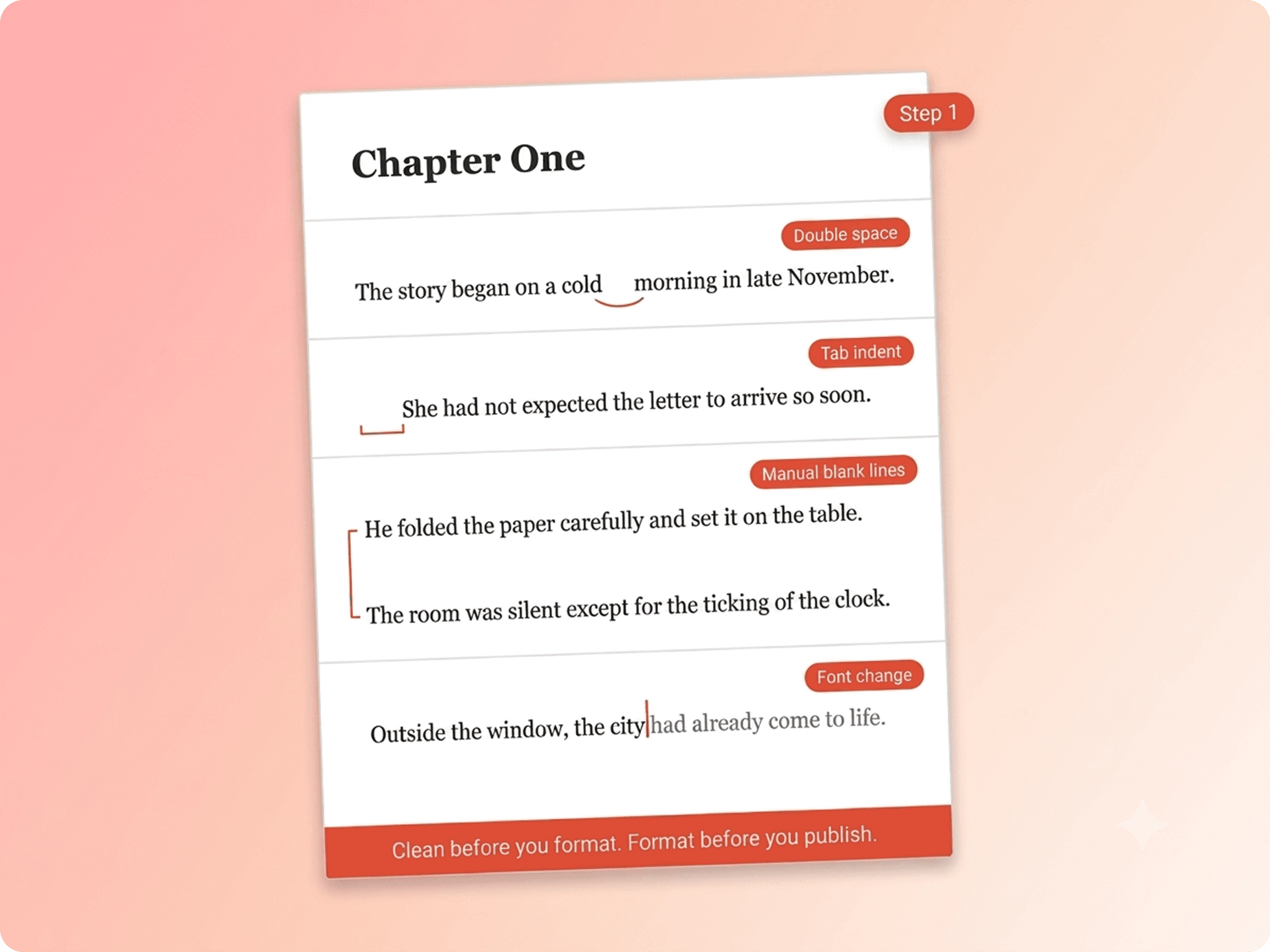
Your manuscript might look clean, but hidden formatting; double spaces, tabs, random fonts, and extra blank lines, is quietly waiting to cause problems after conversion.
Before you do anything else:
Remove double spaces.
Delete tabs used for indentation.
Get rid of extra blank lines.
Use one consistent font throughout.
These small fixes take less than an hour but can save you hours of troubleshooting later.
Step 2: Apply heading styles to chapter titles
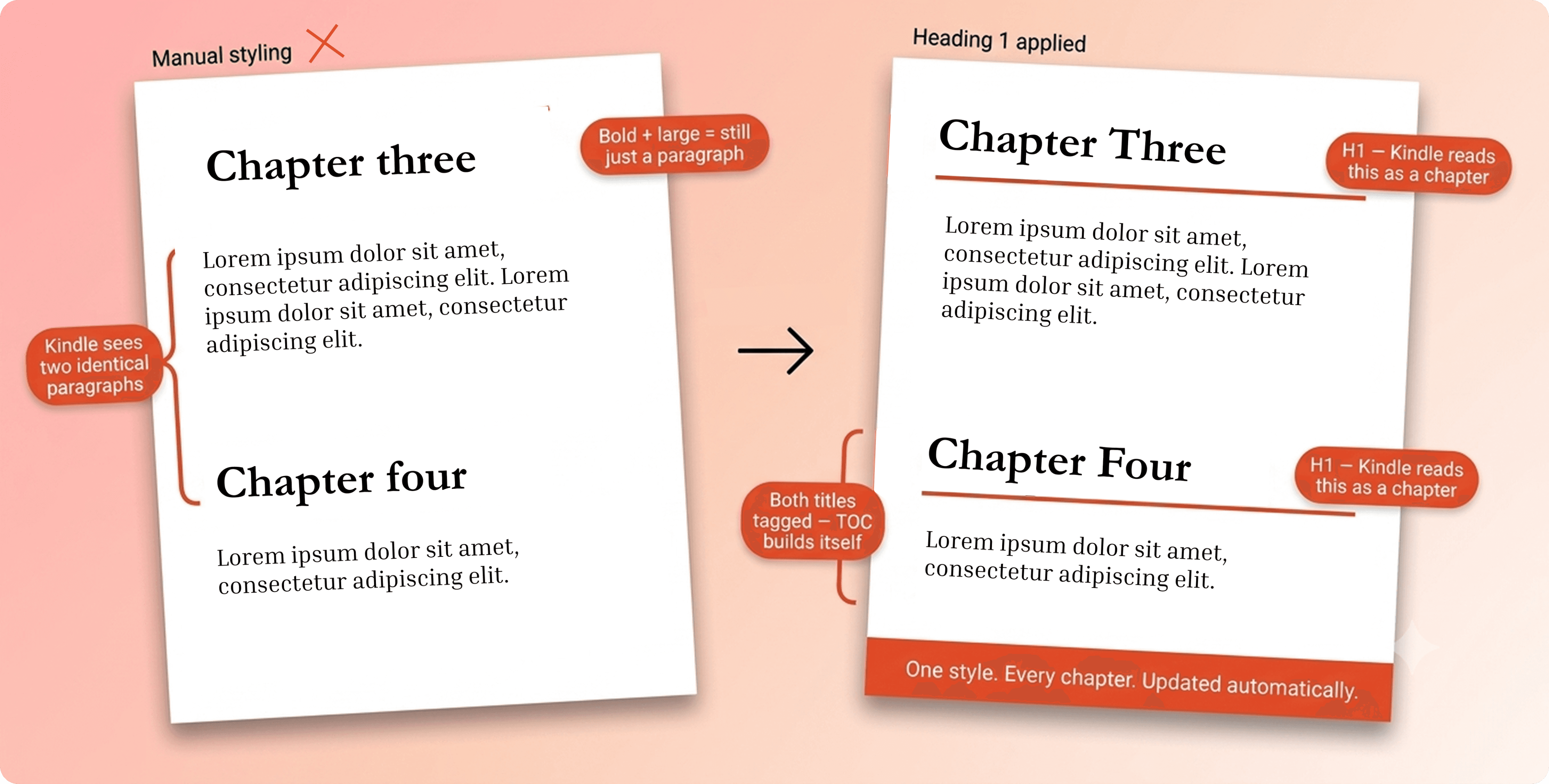
Here's a mistake almost every first-time authors make:
You make your chapter title bigger, bold it, center it and assume Kindle knows it's a chapter. It doesn't.
Kindle reads Heading Styles, not visual formatting. Without them, your table of contents won't work, chapter navigation can break, and readers will struggle to move through your book.
The fix is simple:
Apply Heading 1 to every chapter title.
Use Heading 2 and Heading 3 for sub-sections if needed.
That's all Kindle needs to build proper navigation.
Why heading styles matter for Kindle
What Heading Styles Do | What Happens Without Them |
|---|---|
Kindle builds chapter navigation | No navigation menu on the device |
Table of contents generates automatically | TOC builds incorrectly or not at all |
Chapter breaks are placed correctly | Chapters run together without breaks |
Consistent styling across the book | Each chapter looks slightly different |
Step 3: Format your paragraphs through styles, not manual spacing
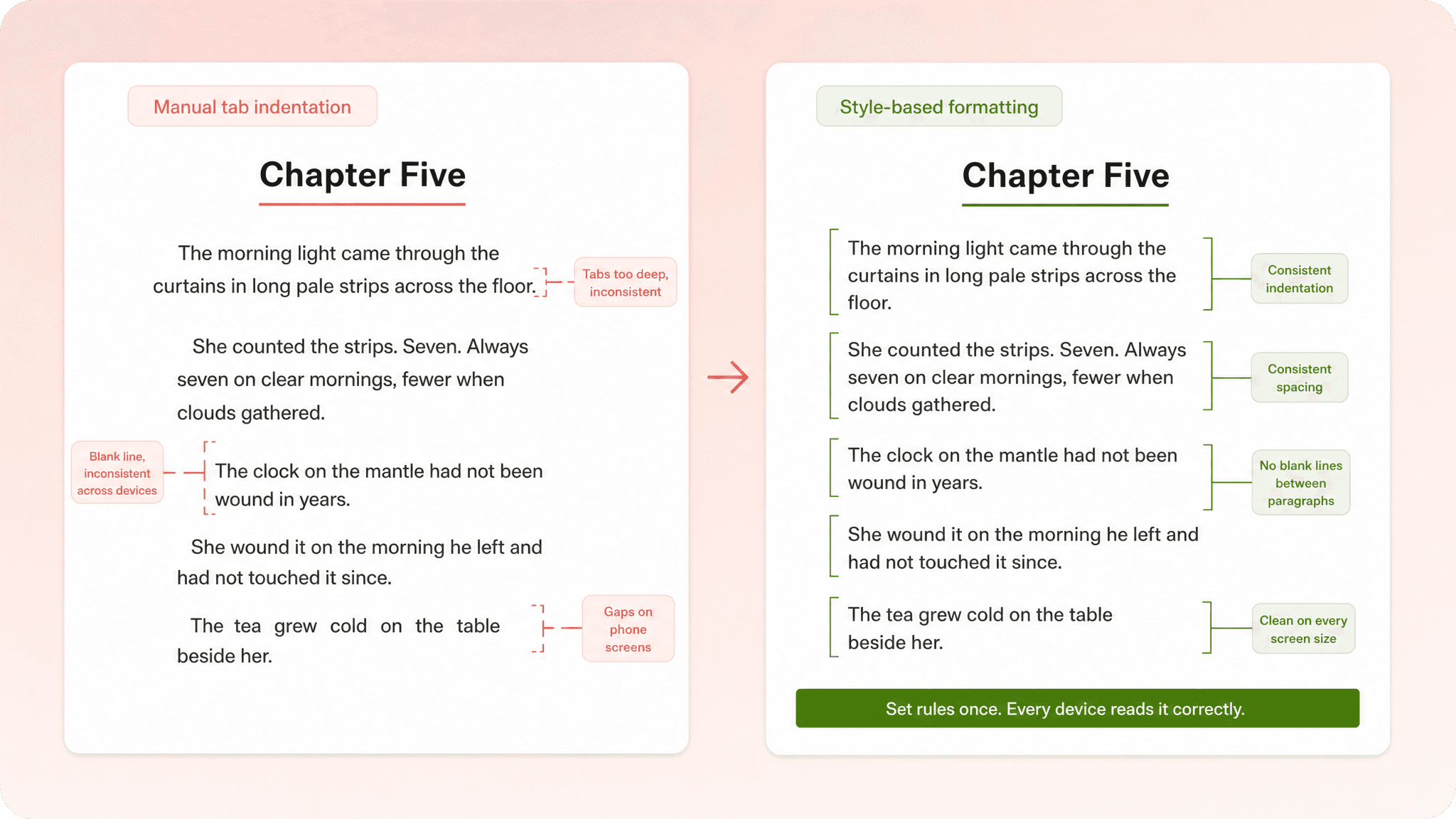
It feels natural; Press Tab. Start a new paragraph. Unfortunately, Kindle doesn't always agree.
Tabs, manual spaces, and inconsistent paragraph spacing behave differently across devices, leaving your book looking messy.
Instead:
Use a first-line indent through paragraph settings.
Left align your text.
Remove blank lines between paragraphs.
The goal isn't to make every page look identical. It's to make every page look great on every device.
Step 4: Use real page breaks

Here is the habit that quietly ruins more Kindle files than almost anything else.
If you've been pressing Enter ten times to start a new chapter, stop right there.Those empty lines become unpredictable gaps on Kindle devices. Instead, insert a proper Page Break before every chapter.
One click. One clean chapter opening. No random blank pages.
Step 5: Build a clickable table of contents

Readers expect to tap a chapter and jump straight to it. A typed list of chapter names might look convincing, but Kindle sees it as plain text, not navigation.
In Word, go to References → Table of Contents and choose an automatic option. The tool reads your Heading 1 tags and builds a linked list from them. Place this TOC right after your title and copyright pages.
Then test it. Click every single entry and confirm it jumps to the correct chapter.
Step 6: Optimize every image
Not all books have images. If yours does, each one needs specific preparation before it is ready for Kindle. Skipping this step is one of the most common reasons book files get flagged or rejected.
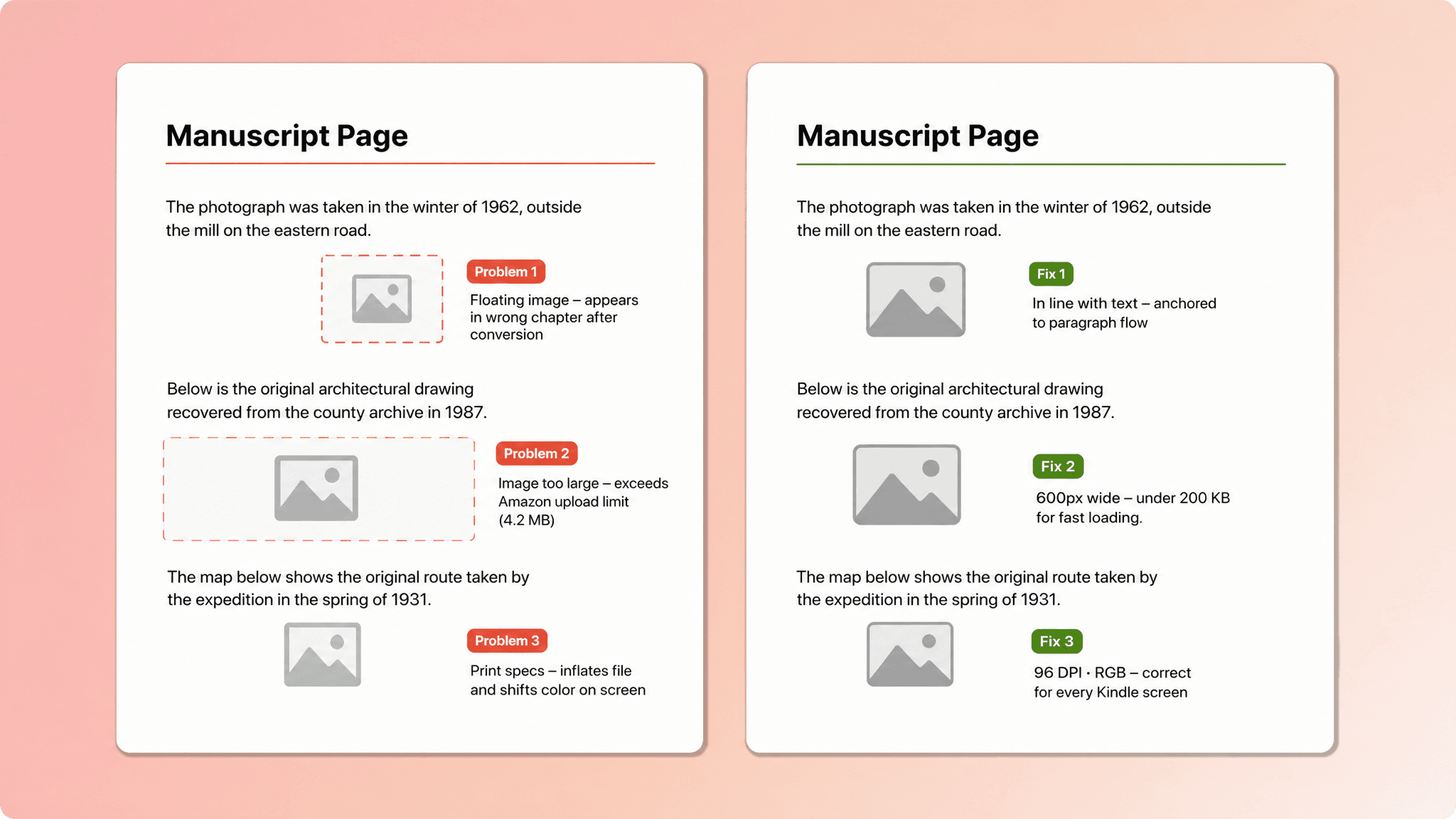
Problem 1: Images that float or wrap
When you insert an image in Word, the default setting is often “wrap text around it” or “float in position.” These placement modes do not survive conversion. During the rendering process, Kindle loses track of where a floating image belongs and places it wherever its internal logic decides.
Fix: Right click every image in your document. Go to Wrap Text → In Line With Text. This anchors the image inside the paragraph flow, so it moves with the surrounding text and stays exactly where you placed it. Center each image on its own line for clean presentation.
Problem 2: Oversized image files
Kindle screens are small. An image at 2,400 pixels wide is no sharper to a reader than one at 600 pixels wide on a phone screen. The extra file size, however, can push your total file size over Amazon’s upload limit, slow loading times, and trigger quality flags.
Fix: Resize every image to approximately 600 pixels wide. Export or compress each image so it sits comfortably under 200 KB. For most books, the entire file size should stay under 50 MB.
Problem 3: Wrong resolution
Screen images use 72 to 96 DPI. Print images need 300 DPI. When Kindle converts a 300 DPI print image, it either inflates the file size unnecessarily or mishandles the resolution. Images intended for digital display should be exported at screen resolution.
Fix: Export images at 96 DPI in RGB color mode for Kindle. This keeps file sizes small, maintains visual quality on screen, and avoids color mode conversion issues.
Problem 4: Wrong color mode
Kindle devices display images using the RGB color mode, making it the correct choice for digital publishing.
Fix: Exporting images in RGB to preserve accurate colors, reduce unnecessary file conversion, and ensure consistent display across Kindle devices and apps.
Image optimization summary
Issue | What It Causes | The Fix |
|---|---|---|
Floating or wrapped image | Appears in wrong place after conversion | Set to In Line With Text |
Image too wide | Large file size, slow loading | Resize to 600 pixels wide |
File too large | Upload limit issues | Compress to under 200 KB per image |
Print resolution (300 DPI) | Inflated file size | Export at 96 DPI for digital |
CMYK color mode | Color shift on screens | Use RGB for eBook images |
Step 7: Export in a Kindle compatible format
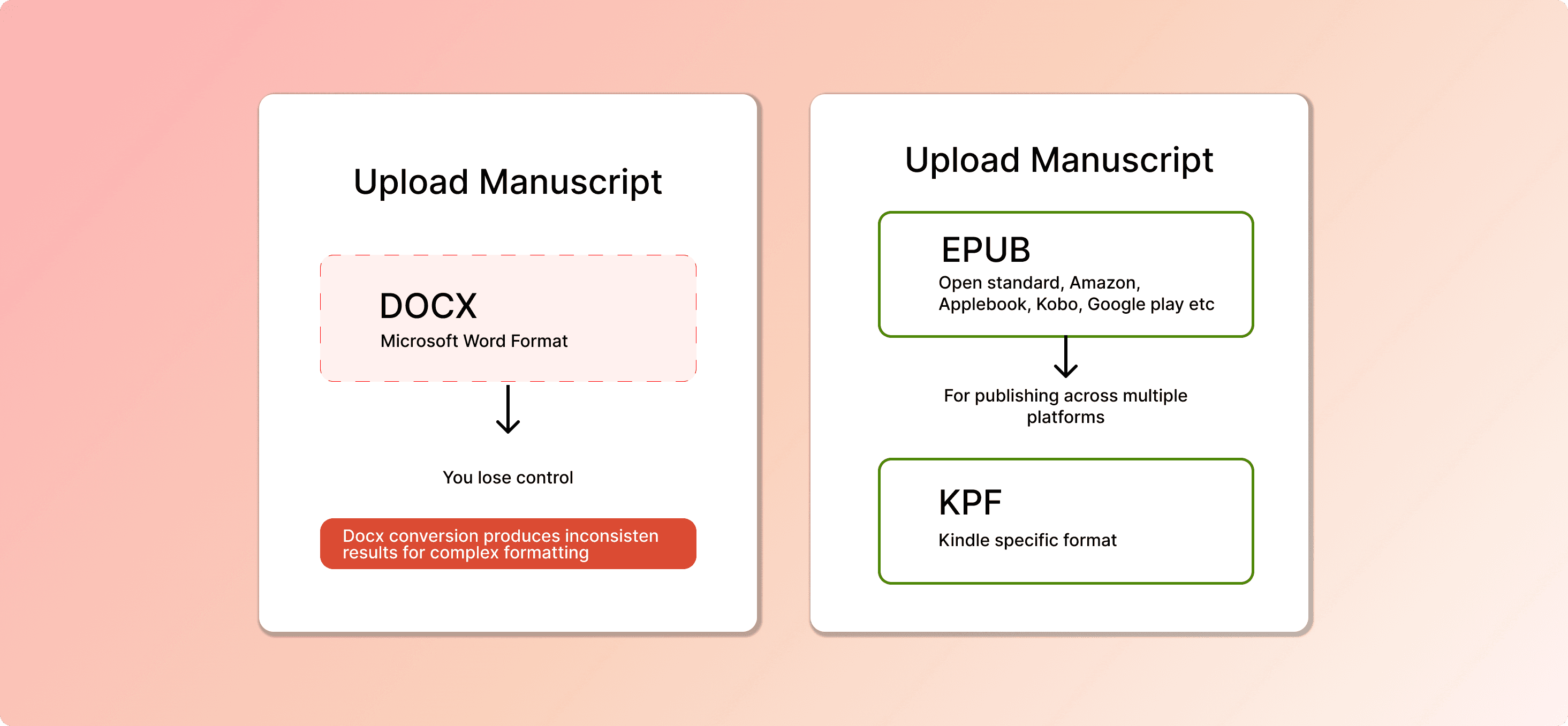
With your manuscript prepared correctly, the actual export is a straightforward decision between a few format options.
Understanding your choices
KPF is Amazon’s native format, produced through Kindle specific publishing tools. It is the cleanest option for Kindle devices and apps, and it is what Amazon prefers when submitting directly to KDP. If you are publishing exclusively on Amazon, this is your first choice.
EPUB is the open industry standard used by Apple Books, Kobo, Google Play, Barnes & Noble, and most other retailers. Amazon also accepts EPUB for Kindle, and a properly validated EPUB file produces excellent results. If you want one file that works across Amazon and other platforms, EPUB is the more flexible option.
DOCX is the Microsoft Word format. Amazon accepts it and converts it automatically during upload. The catch is that you surrender control over the conversion. For simple, text only books this sometimes works. For anything with images, complex formatting, or specific styling requirements, DOCX conversions often produce inconsistent results.
Which format is right for you?
Your Situation | Recommended Format |
|---|---|
Publishing only on Amazon Kindle | KPF |
Publishing on Amazon plus other platforms | EPUB (validated) |
Text only book, first upload to test | DOCX (with caution) |
Step 8: Preview and test on real devices
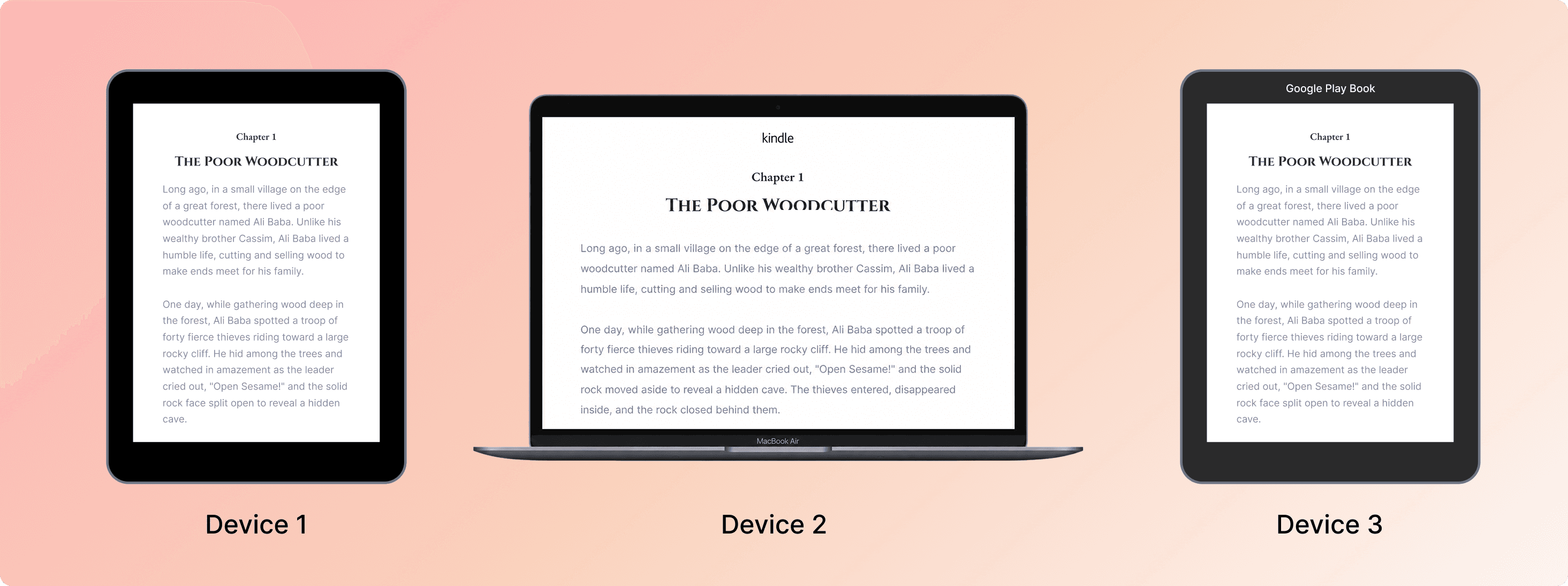
Why the KDP previewer is not enough
Amazon’s online preview tool shows how your book will look as rendered by your computer. It is not a Kindle. It does not use the same rendering engine. Books that look perfectly formatted in the KDP previewer regularly arrive broken on actual devices, especially on phones.
The majority of Kindle readers now read on phones. If your book breaks on the device most of your readers use, you will not know until reviews start coming in.
Download your file and check it on at least three different devices or apps.
Check that:
Every chapter opens correctly.
The table of contents works.
Images appear in the right place.
Fonts scale properly.
Everything looks great on different screen sizes.
Each issue you catch here takes five minutes to fix. The same issue discovered after publishing requires a file correction, a re-upload, and a wait period, and the readers who already downloaded the broken version keep it.
The eight most common Kindle formatting mistakes
Even thorough authors run into the same handful of issues. This section addresses them directly.
Even experienced authors make these mistakes. The good news? They're all easy to fix.
1. Formatting chapter titles by hand
The problem: Making a title bigger and bolder doesn't tell Kindle it's a chapter.
The fix: Apply Heading 1 to every chapter title so Kindle can build navigation and a clickable table of contents.
2. Using tabs for paragraph indents
The problem: Tabs and extra spaces don't display consistently across Kindle devices.
The fix: Use a first-line indent in your paragraph settings instead of pressing the Tab key.
3. Pressing enter to start a new chapter
The problem: Multiple blank lines can turn into unexpected empty pages.
The fix: Replace them with a proper Page Break before every chapter.
4. Justifying your text
The problem: Fully justified text often creates awkward gaps on smaller screens.
The fix: Keep your body text left-aligned for a cleaner reading experience.
5. Floating images
The problem: Wrapped images can shift or appear in the wrong place after conversion.
The fix: Set every image to In Line With Text before exporting.
6. Creating the table of contents manually
The problem: A typed table of contents looks fine but doesn't work on Kindle.
The fix: Generate it automatically using your Heading 1 styles.
7. Only using the KDP previewer
The problem: A book that looks perfect in the preview can still break on real Kindle devices.
The fix: Test your book on the Kindle app or an actual Kindle before publishing.
8. Editing after formatting
The problem: Last minute edits can break your layout, navigation, and spacing.
The fix: Finish writing and editing first, then format your book as the final step.
How PublishPro handles Kindle formatting
Manual Formatting | With PublishPro |
|---|---|
Clean manuscript, remove spaces, tsabs, blank lines | Manuscript cleaned automatically |
Apply Heading 1 to every chapter title | Heading styles applied to every chapter |
Set paragraph styles for indentation | Paragraph style set - 0.25 inindent |
Insert real page breaks between chapters | Page breaks automatically added |
Build and test clickable table of contents | Clickable TOC generated and verified |
Optimize and resize every image | Images optimized and placed inline |
Export EPUB and PDF files seperately | Export EPUB and PDF files from one source |
Test on different devices | Multi-device preview |
Here is what happens when you upload a manuscript to PublishPro.
PublishPro takes care of the technical work automatically. Simply upload your manuscript, and it:
Cleans hidden formatting issues, extra spaces, and tabs.
Builds a proper chapter structure and clickable table of contents.
Applies consistent paragraph styles and page breaks.
Optimizes images for Kindle.
Generates publication ready PDF and EPUB files.
Lets you preview your book across different devices before publishing.
Instead of spending hours fixing formatting, you can move from manuscript to publish ready files in under an hour.
The bottom line
Formatting a book for Kindle is a skill, not a mystery. The eight steps in this guide cover everything from a clean manuscript to a tested, publish ready file, and each one builds on the one before it.
Start with a clean manuscript, use heading styles and proper paragraph formatting, insert page breaks, create a clickable table of contents, optimize images, export in the correct format, and test the ebook before publishing. Following these steps helps your book display professionally, navigate smoothly, and meet Amazon's quality standards.
“Your writing earned a clean presentation. These steps are how you give it one, on every phone, tablet, and e-reader your readers use.”
