How to convert Word to eBook (Complete beginner guide)
Transform Word manuscripts into platform-ready eBooks.


Words by
Fatima Hassan
Last updated:
Your word document isn't an eBook (yet)
You've finished your manuscript, clicked Save, and thought, "Great, now I just need to turn this into an eBook."
If only it were that simple.
A Word document is where your story is written, but it's not where your eBook is born. Word is built for paperback with fixed layouts. eBooks are designed to adapt, reshaping themselves for Kindles, tablets, phones, and every reader's preferred font size. That's why a manuscript that looks perfect on your laptop can suddenly have broken spacing, missing navigation, or awkward formatting on an eReader.
Good eBook conversion isn't just about changing the file extension. It's about preserving your book's structure, readability, and navigation so it feels polished on every device.
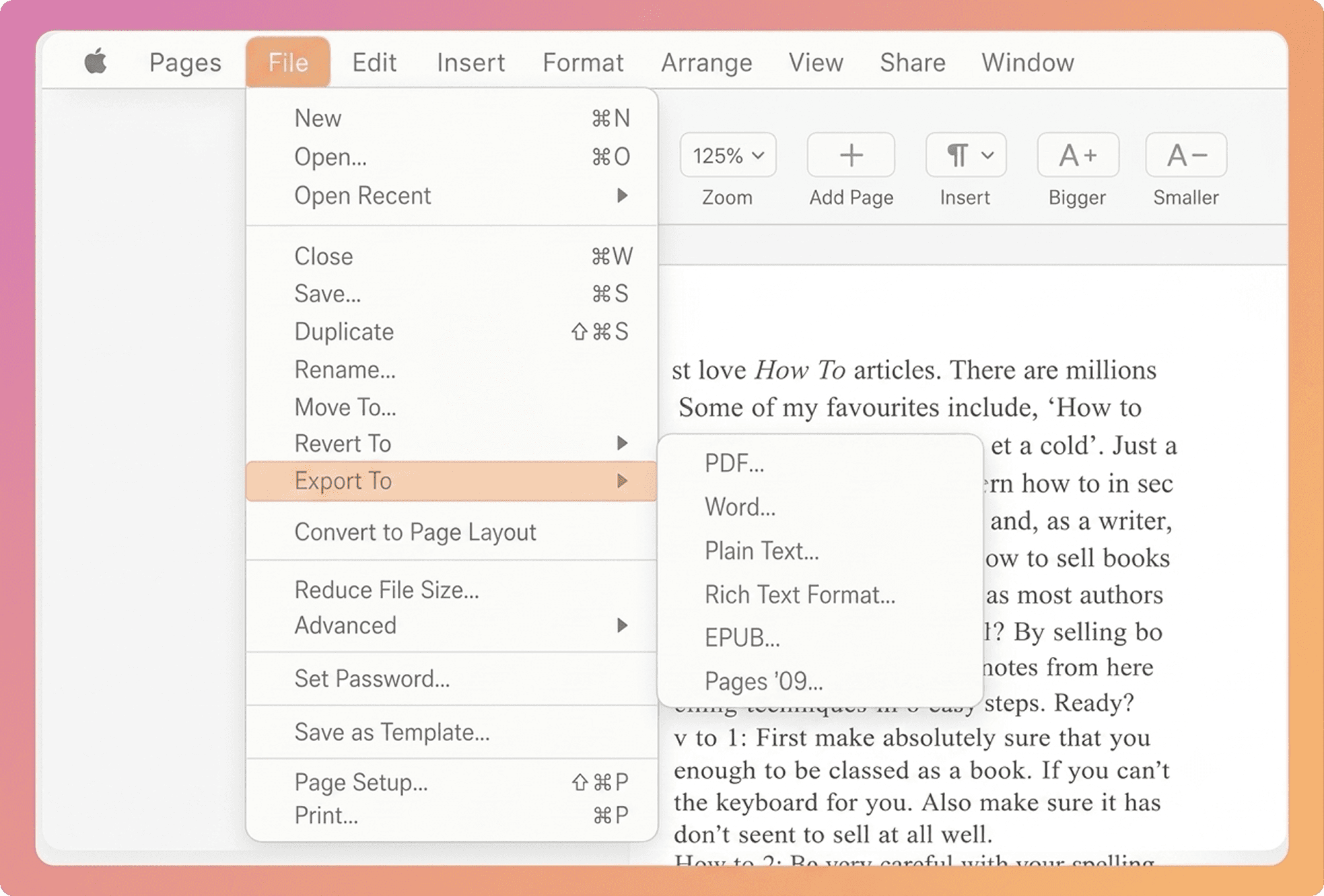
One last tip before you begin, make sure your manuscript is completely edited and proofread. Every change you make after conversion means extra work later, so it's best to finish your story before transforming it into an eBook.
What really happens during eBook conversion?
Imagine handing your manuscript to a professional book designer. They wouldn't just click "Save As EPUB." They'd check your chapter structure, clean up hidden formatting, organize your headings, fix spacing, optimize images, build a clickable table of contents, and make sure everything works perfectly on every device.
That's exactly what eBook conversion is. It's not a single click, it's a series of steps that transforms your manuscript into a book readers will actually enjoy.
A typical conversion looks like this:
Clean and prepare your manuscript.
Organize headings and paragraph styles.
Convert it into EPUB or Kindle format.
Check for formatting errors.
Preview it on different devices before publishing.
Each step builds on the last. Skip one, and small formatting issues can quickly turn into a frustrating reading experience.
Why it isn't just a file conversion
Think of your Word document as the blueprint of a house. The blueprint tells you where everything should go, but you can't move into it.
Your eBook is the finished house.
During conversion, your manuscript is rebuilt into a format that can adapt to Kindles, tablets, phones, and desktops. Unlike Word, eBooks don't have fixed pages. Readers can change the font size, screen orientation, or device, and your book has to adjust seamlessly every time.
That's why hidden formatting shortcuts; extra spaces, repeated line breaks, manual tabs, or inconsistent headings often fall apart after conversion.
PublishPro takes care of those details automatically. It recognizes your manuscript's structure, cleans up hidden formatting, creates proper navigation, and generates publication ready EPUB files that look professional on every supported device.
The result? Instead of wondering whether your book will display correctly, you can focus on something far more important; getting it into your readers' hands.
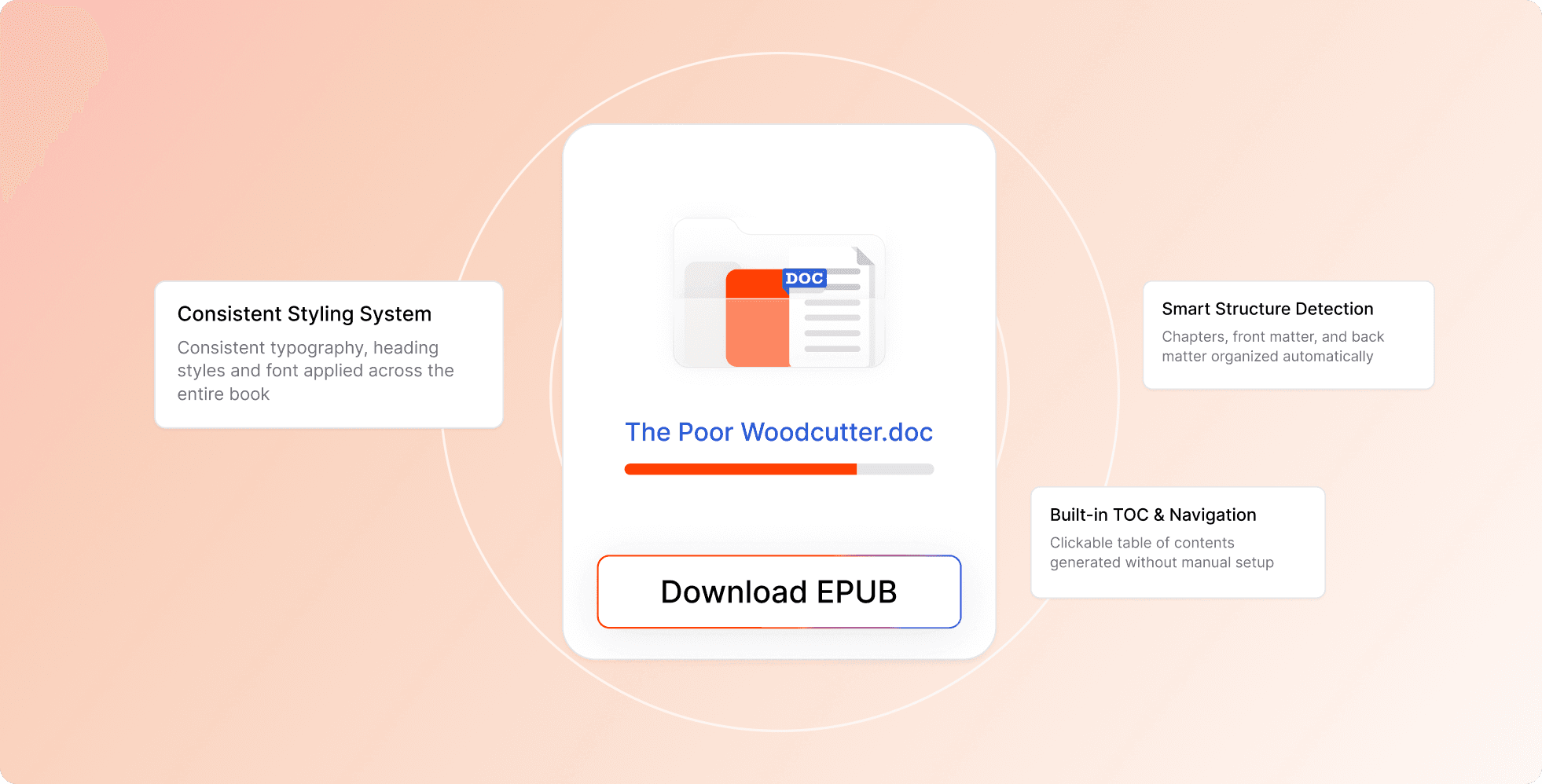
Choosing the right eBook format
Imagine you've finally finished your manuscript. Now comes the next question:
"Which file should I publish?"
Suddenly you're staring at terms like EPUB, KPF, and DOCX, wondering if you accidentally signed up for a computer science course instead of publishing a book.
The good news? You only need to understand three formats:
Format | Best For |
|---|---|
DOCX | Your original Word manuscript |
EPUB | Apple Books, Kobo, Google Play Books, KDP and most publications |
KPF | Amazon Kindle and KDP |
Think of your DOCX file as the master copy of your book. It's where you write and edit.
Your EPUB is the version that travels to almost every major bookstore.
Your KPF is the version built specifically for Kindle readers.
Step 1: Start with a clean manuscript
Every great eBook starts with one thing: A well-organized Word document.
Think of your manuscript like the foundation of a house. If it's messy underneath, no conversion tool can magically fix everything above it.
Before converting, spend a few minutes cleaning things up.
Remove double spaces.
Delete extra blank lines.
Replace tabs with proper paragraph settings.
Use one consistent font throughout.
Apply Heading 1 to every chapter title.
Insert real page breaks instead of pressing Enter repeatedly.
These tiny changes make a huge difference once your manuscript becomes an eBook. Or skip the cleanup altogether.
PublishPro automatically detects and fixes many of these common formatting issues before conversion even begins, saving you from hours of manual editing.
Step 2: Pick a conversion method
Once your manuscript is ready, it's time to turn it into an eBook.
There are three common ways to do it.
Option 1: Microsoft Word
Word can export directly to EPUB, making it the quickest option. But quick doesn't always mean reliable.
Simple novels usually convert well, while books with images, custom layouts, or complex formatting often need extra cleanup afterward.
Option 2: Conversion software
Tools like Calibre give you more control and support multiple formats.
The trade-off?
A steeper learning curve, more settings to configure, and more time spent testing the final result.
Option 3: PublishPro
Instead of juggling multiple tools, PublishPro handles the entire conversion process for you.
Upload your manuscript, choose your template, and the platform formats your book, builds navigation, validates the files, and generates publish ready EPUB file, all from a single workflow.
Less time fixing. More time publishing.
Step 3: Convert your book
This is the part most authors think is the hardest. Ironically, it's often the easiest.
Once your manuscript is properly prepared, conversion takes only a few minutes. The real secret? A great eBook isn't created by the conversion tool. It's created by a well-structured manuscript.
That's why PublishPro focuses on both. It prepares your manuscript and converts it, giving you a professional result without the trial and error.
Step 4: Don't skip the final check
Imagine publishing your book only to discover readers can't open Chapter 8. Or your images have shifted. Or your table of contents doesn't work. That's why professional publishers always test before they publish.
Check that:
Every chapter opens correctly.
The table of contents works.
Images appear where they should.
Fonts scale properly.
The book looks great on phones, tablets, and eReaders.
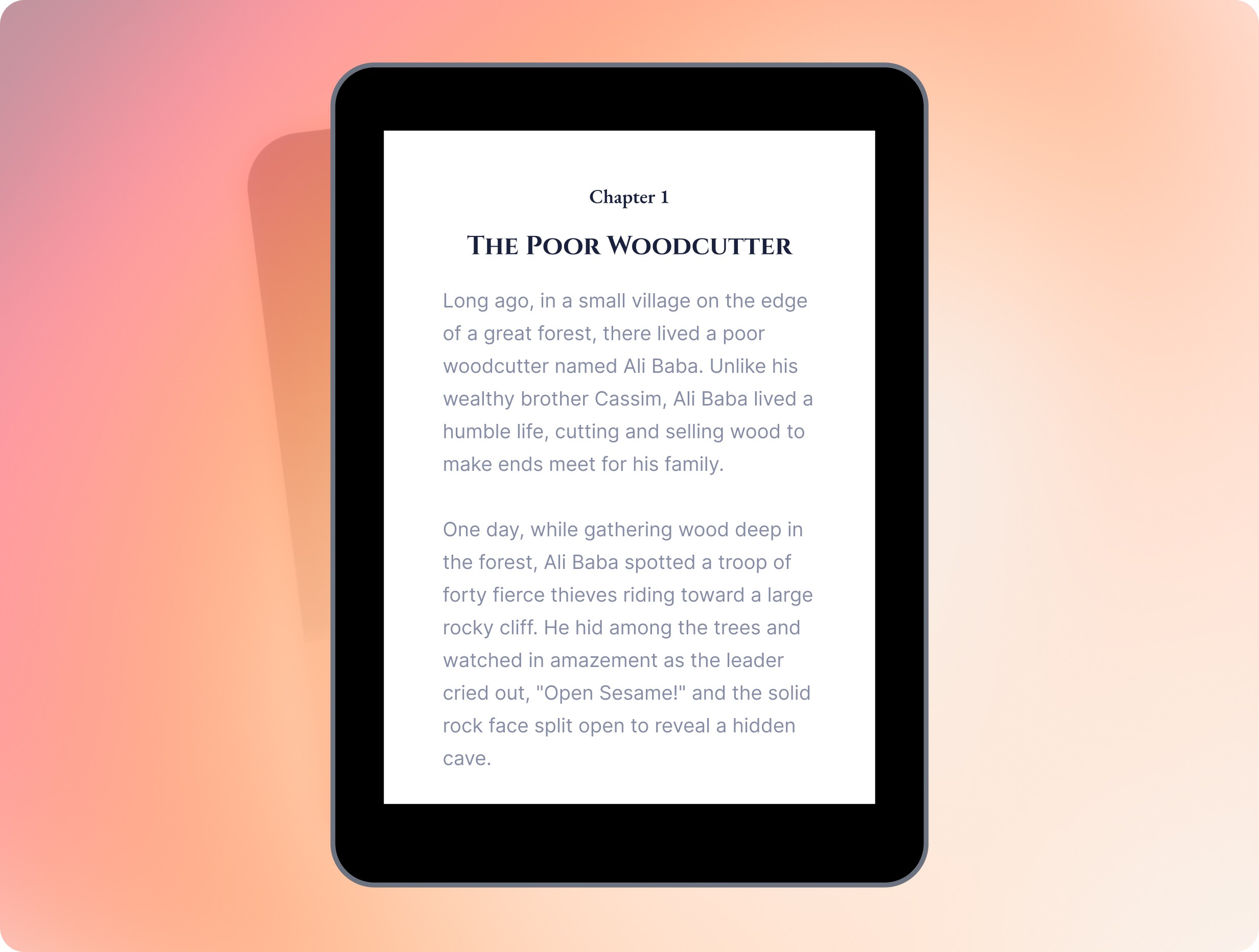
PublishPro makes this step much easier by validating your files against publication requirements and letting you preview your book before it ever reaches your readers.
Instead of wondering whether everything works, you'll already know.
The Most common conversion mistakes
Most eBook problems don't happen during conversion. They happen long before it. Authors often:
Format with spaces instead of styles.
Use tabs for indentation.
Leave print headers and page numbers in the file.
Forget to remove tracked changes.
Skip testing before publishing.
They're easy mistakes to make, and even easier to avoid when your publishing workflow catches them automatically.
That's exactly what PublishPro is designed to do.
From word document to published book
Converting a manuscript isn't really about changing a file type. It's about transforming your story into a book that feels professional on every screen, every device, and every bookstore.
PublishPro brings every step together in one place. It cleans your manuscript, builds a professional structure, creates EPUB and PDF files, validates them against publication requirements, and lets you preview everything before you publish.
No switching between tools.
No guessing whether your files will be accepted.
No last-minute surprises.
You wrote the story. PublishPro makes sure the world reads it exactly the way you intended.
